
Contact buttons, WhatsApp, social icons and links on your card
What visitors can tap on an MJX Card — Call, Email, Direction, WhatsApp, social icons, services, custom links — and which field powers each one.
An MJX Card turns each detail you fill in into something a visitor can tap: a phone number calls, an email opens the mail app, the address opens Google Maps, and social fields become round icons. This page shows which field powers which button.
#The three main buttons
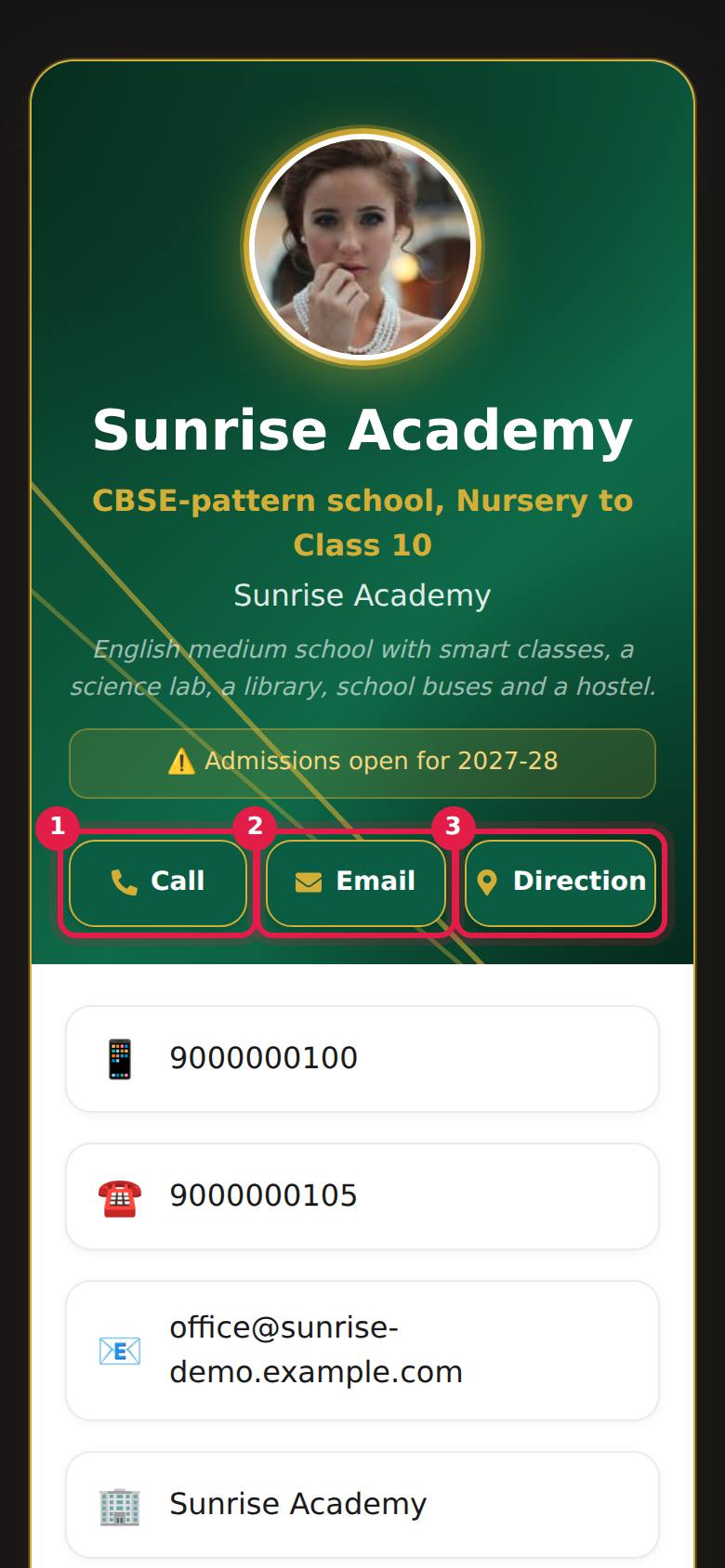
At the top of every card, under your name, are three large buttons:
| Button | What it does | Field it uses |
|---|---|---|
| Call | Opens the phone dialler with your number | Mobile Number |
| Opens a new email to you | Email Address | |
| Direction | Opens Google Maps searching for your address | Address |
#The details list
Below the buttons, each filled field becomes a row:
| Row | Tapping it |
|---|---|
| 📱 Mobile Number | Calls the number |
| ☎️ Office Phone | Calls the number |
| ☎️ Alternate Phone | Calls the number |
| 📧 Email Address | Opens a new email |
| 🏢 Company / Organisation | Text only |
| 📍 Address | Opens the address in Google Maps |
| 🌐 Website | Opens the website in a new tab |
Empty fields are simply left out.
#WhatsApp icon
The green WhatsApp icon appears when Mobile Number is filled. It opens a WhatsApp chat with that number (wa.me link).
The number is cleaned up for WhatsApp automatically:
- A 10-digit number, such as
98XXXXXX10, gets the India code 91 in front. - A number starting with 0, such as
098XXXXXX10, has the 0 replaced by 91. - A number that already starts with 91 or another country code is used as it is.
There is no separate WhatsApp field. Put your WhatsApp number in Mobile Number.
#Social icons
Round icons appear near the bottom of the card for each social field you fill on the Social Media tab, in this order: LinkedIn, WhatsApp, Facebook, Instagram, YouTube, X. Each opens in a new tab.
| Field | You can type | Example |
|---|---|---|
| LinkedIn URL | The full address | https://www.linkedin.com/in/your-name |
| Facebook URL | The full address | https://www.facebook.com/sunrisecoaching |
| Instagram URL or Username | The full address or the username | sunrisecoaching |
| X / Twitter URL | The full address or the handle | sunrisecoach |
| YouTube URL or Channel name without @ | The full address or the handle without @ | SunriseCoaching |
#Services
On the Extras tab, type your services separated by commas in Services comma-separated — for example Class 10 Maths, Class 12 Physics, NEET coaching. They show as tags under the heading Services.
#Custom links
On the Links tab, press Add Link and fill Label e.g. Portfolio and URL. Each link shows under Links as a 🔗 button with your label. Good uses:
- A brochure or price list
- An admission or enquiry form
- Your Google reviews page
- A portfolio or product catalogue
If you type the URL without https://, it is added for you.
#Note / warning banner
Note / Warning banner optional on the Extras tab shows a highlighted line with a ⚠️ sign under your name. Use it for short, current notices such as "New batch starts 1 June" or "Closed on Sundays". Clear the field when the notice is out of date.
#Share Profile and Save Contact
The last two buttons on every card are always shown:
- Share Profile — opens the phone's share menu with the card link. On a computer without a share menu, it copies the link and says "Link copied!". See share your card.
- Save Contact — downloads a contact file the phone adds to its contacts. See Save Contact (vCard).
#How to change a button
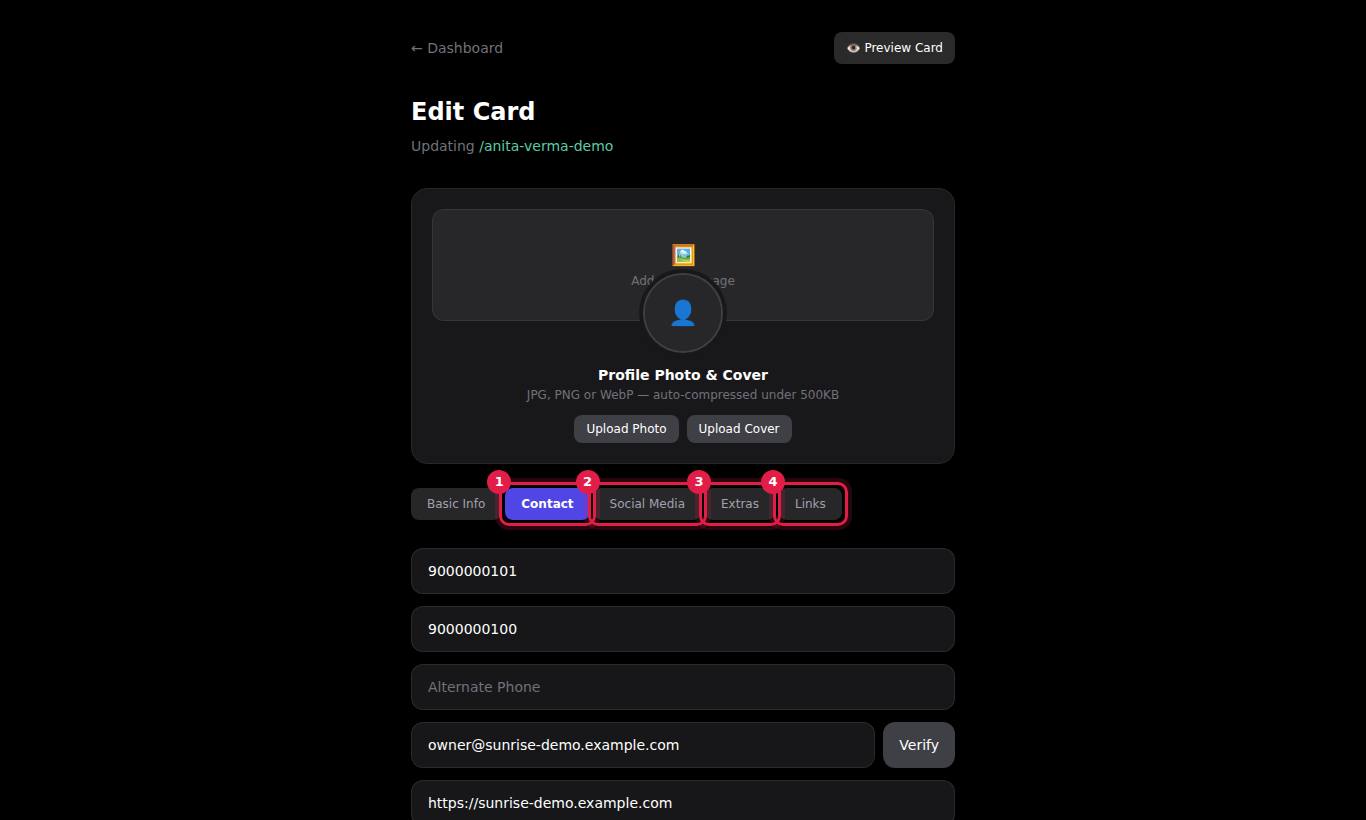
- Press Edit on the card in the Profiles tab.
- Open the tab that holds the field (see the tables above).
- Change or clear the field.
- Press Save Changes.
#Questions people ask
How do I add a WhatsApp button to my card?
Fill in Mobile Number on the Contact tab. The green WhatsApp icon appears automatically and opens a chat with that number.
My WhatsApp number is different from my mobile number. Can I add it?
Not as a separate field. The WhatsApp icon always uses the Mobile Number. Put the WhatsApp number in Mobile Number and your other number in Office Phone or Alternate Phone.
Why does the Direction button open the wrong place?
Direction searches Google Maps for the text in your Address field. Write the full address with area, city and PIN code so Maps finds the right spot.
Can I change the order of the buttons?
No. The layout is fixed. You control which rows and icons appear by filling or emptying fields. Custom links appear in the order you added them.