
Create a digital business card
Every field on the MJX Card form, tab by tab — Basic Info, Contact, Social Media, Extras and Links — and what each one shows on your card.
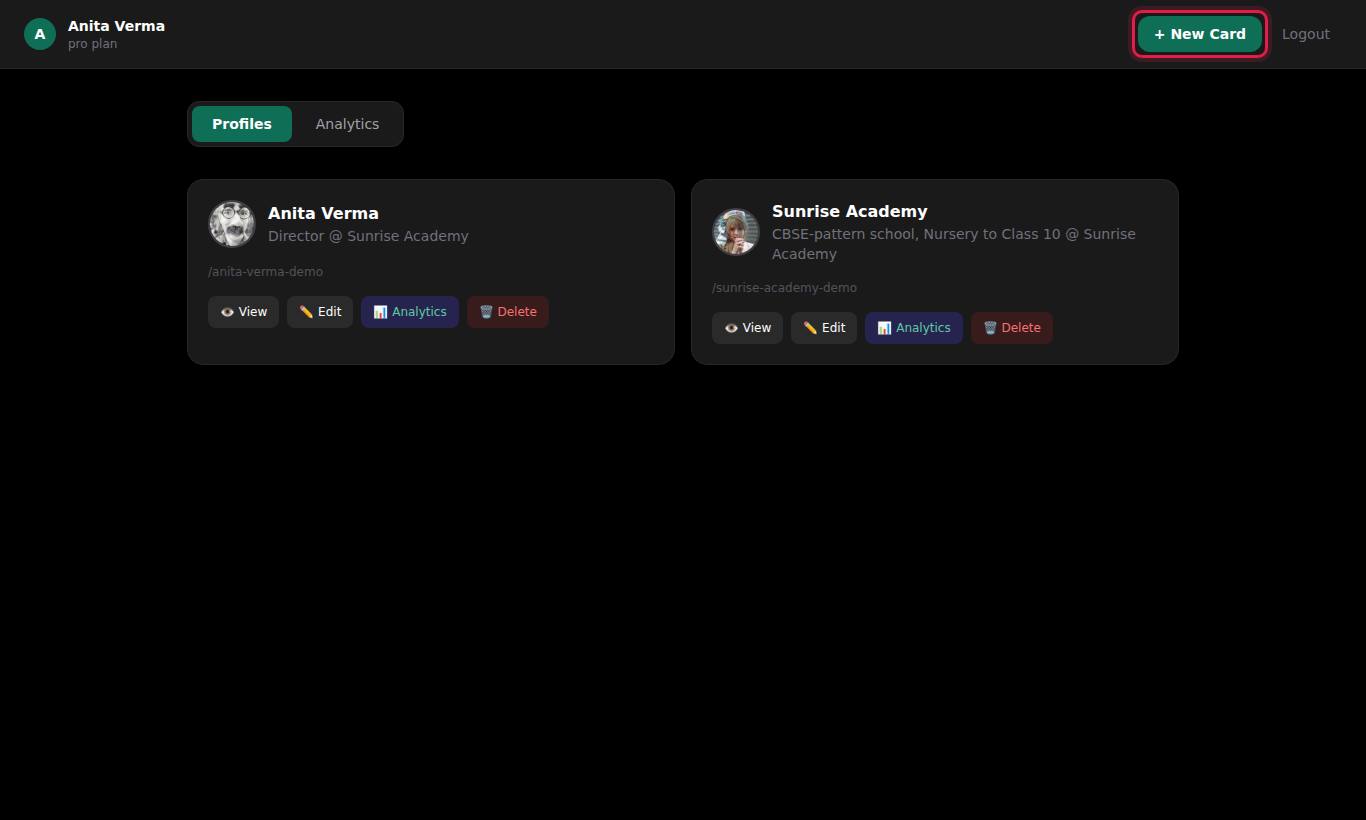
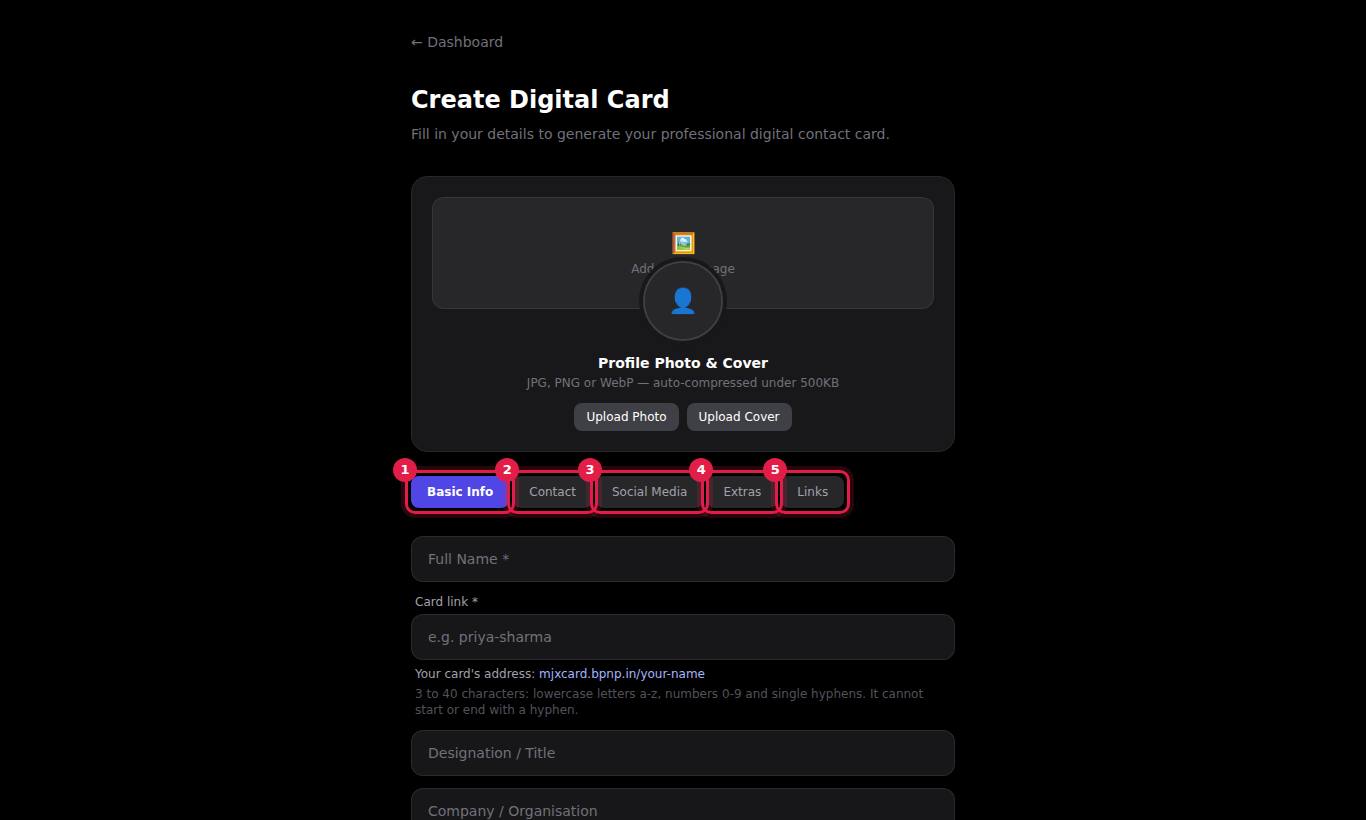
In MJX Card, you create a card from your dashboard with + New Card. The form has a photo area at the top and five tabs — Basic Info, Contact, Social Media, Extras and Links. Only Full Name and Card link are required.
#How to create a card
- Sign in at mjxcard.mjxtechnologies.com/login. Your dashboard opens.
- Press + New Card in the top bar. If you have no cards yet you can also press Create Your First Card.
- Optional: press Upload Photo and Upload Cover — see photo and cover image.
- On Basic Info, fill Full Name \* and Card link \*. The link fills in from your name; under it you see the full address and whether the name is free.
- Move through the other tabs and fill in what you want people to see. You can switch tabs freely; nothing is lost.
- Press Create Card at the bottom of the page.
#Basic Info tab
| Field (as shown) | What it shows on the card |
|---|---|
| Full Name \* | Your name in large text at the top. Also used as the contact name in Save Contact. |
| Card link \* | The end of your link: mjxcard.mjxtechnologies.com/<slug>. 3 to 40 lowercase letters, numbers and single hyphens; not a reserved word; not used by another card. Cannot be changed later — see your card link. |
| Designation / Title | Your job title, under your name. |
| Company / Organisation | Your company, under your title, and again in the details list. |
| One-line bio | A short line in italics under your name. It is also used as the page description that search engines such as Google can show. |
#Contact tab
| Field (as shown) | What it shows on the card |
|---|---|
| Mobile Number | A tap-to-call row. Also used by the Call button and the WhatsApp icon. |
| Office Phone | A second tap-to-call row. |
| Alternate Phone | A third tap-to-call row. |
| Email Address | A tap-to-email row and the Email button. Has a Verify button for the verified badge. |
| Website without https:// | A tap-to-open row, e.g. type sunrisecoaching.in. |
| Address | A row that opens Google Maps, and the Direction button. Several lines are allowed. |
#Social Media tab
| Field (as shown) | What to type |
|---|---|
| LinkedIn URL | Your full LinkedIn profile or page address |
| Facebook URL | Your full Facebook page or profile address |
| Instagram URL or Username | Either the full address or just the username, e.g. sunrisecoaching |
| X / Twitter URL | The full address, or just the handle |
| YouTube URL or Channel name without @ | Either the full channel address or the handle without the @ sign |
Each filled field becomes a round icon near the bottom of the card. See contact buttons and links.
#Extras tab
| Field (as shown) | What it does |
|---|---|
| Services comma-separated | Type a list separated by commas, e.g. Maths tuition, Physics, JEE crash course. Each item shows as a tag under Services. |
| Note / Warning banner optional | A highlighted banner with a ⚠️ sign under your name, e.g. "Closed on Sundays". Leave empty if you do not need it. |
#Links tab
Press Add Link for each extra link you want, such as a portfolio, brochure, admission form or price list.
- Label e.g. Portfolio — the text people see.
- URL — the address it opens.
- Press × to remove a link.
A link with an empty label or empty URL is dropped when you save. Links show under Links on the card, in the order you added them.
#Who can create cards
Any signed-in card owner. There is no plan or payment gate. Cards are always created under your own account.
#Tips
- Fill Mobile Number, Email Address and Address. The Call, Email and Direction buttons are always shown at the top of the card, so an empty field means a button that does nothing.
- Keep the One-line bio short — one line on a phone screen reads best.
- Make one card per role rather than mixing a job and a side business on one card.
#Questions people ask
Which fields are required?
Only Full Name and Card link. Every other field is optional and is hidden on the card when left empty.
How many cards can I create?
You can create several cards from one account, for example a personal card and a company card. Each card needs its own slug.
Is there a separate field for my WhatsApp number?
No. The WhatsApp icon uses your Mobile Number. A 10-digit Indian number gets +91 added automatically.
Can I save a half-finished card as a draft?
No. There is no draft. A card is live at its link as soon as you press Create Card, so fill in what you want people to see first.
What happens after I press Create Card?
The card is saved and opens at its public link straight away. It also appears under the Profiles tab of your dashboard.