
Edit or delete your digital card
Update any detail on your MJX Card without changing its link or QR code, preview it, or delete a card and its data for good.
You can edit an MJX Card as often as you like. The link and QR code never change, so everyone who already has your card sees the new details next time they open it. You can also delete a card yourself at any time.
#How to edit a card
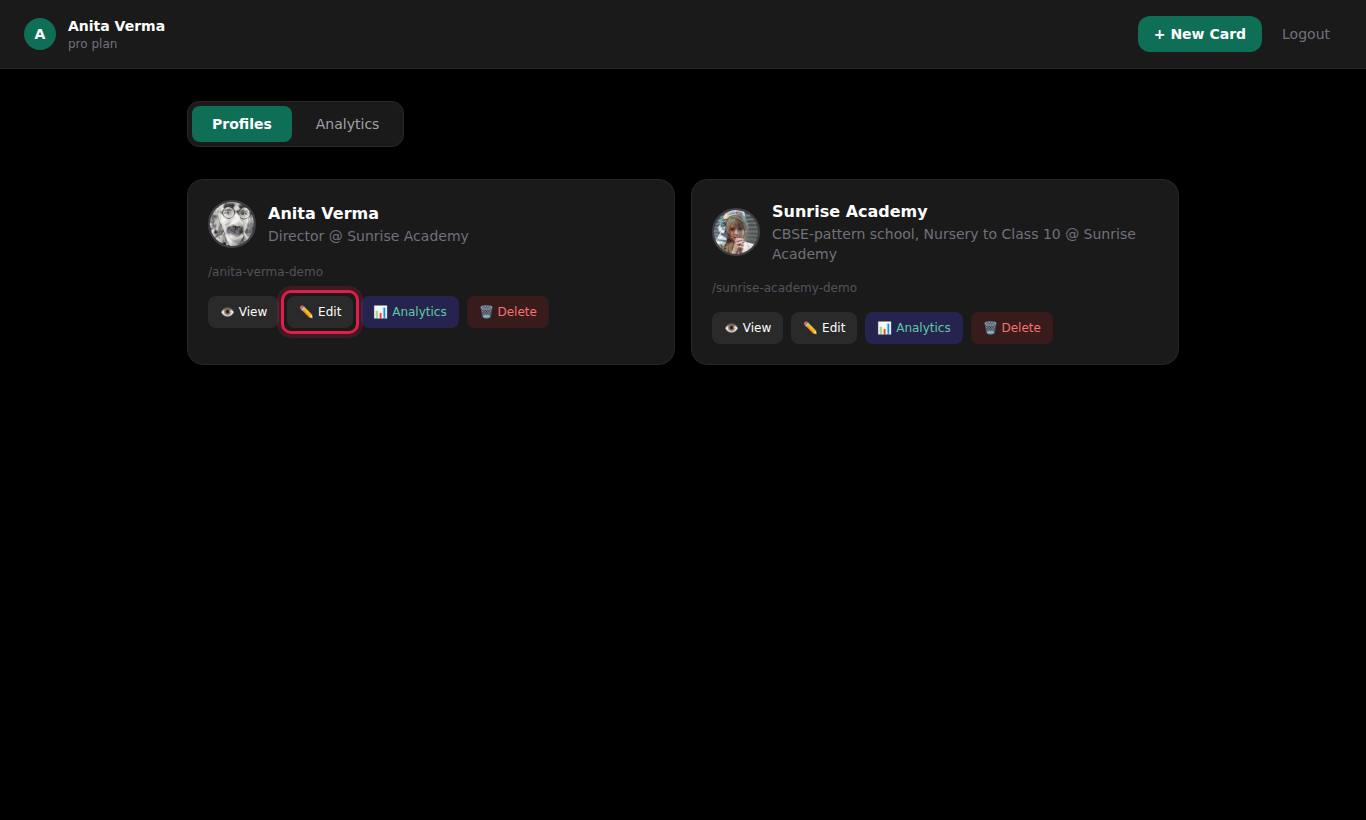
- Sign in. Your dashboard opens on the Profiles tab.
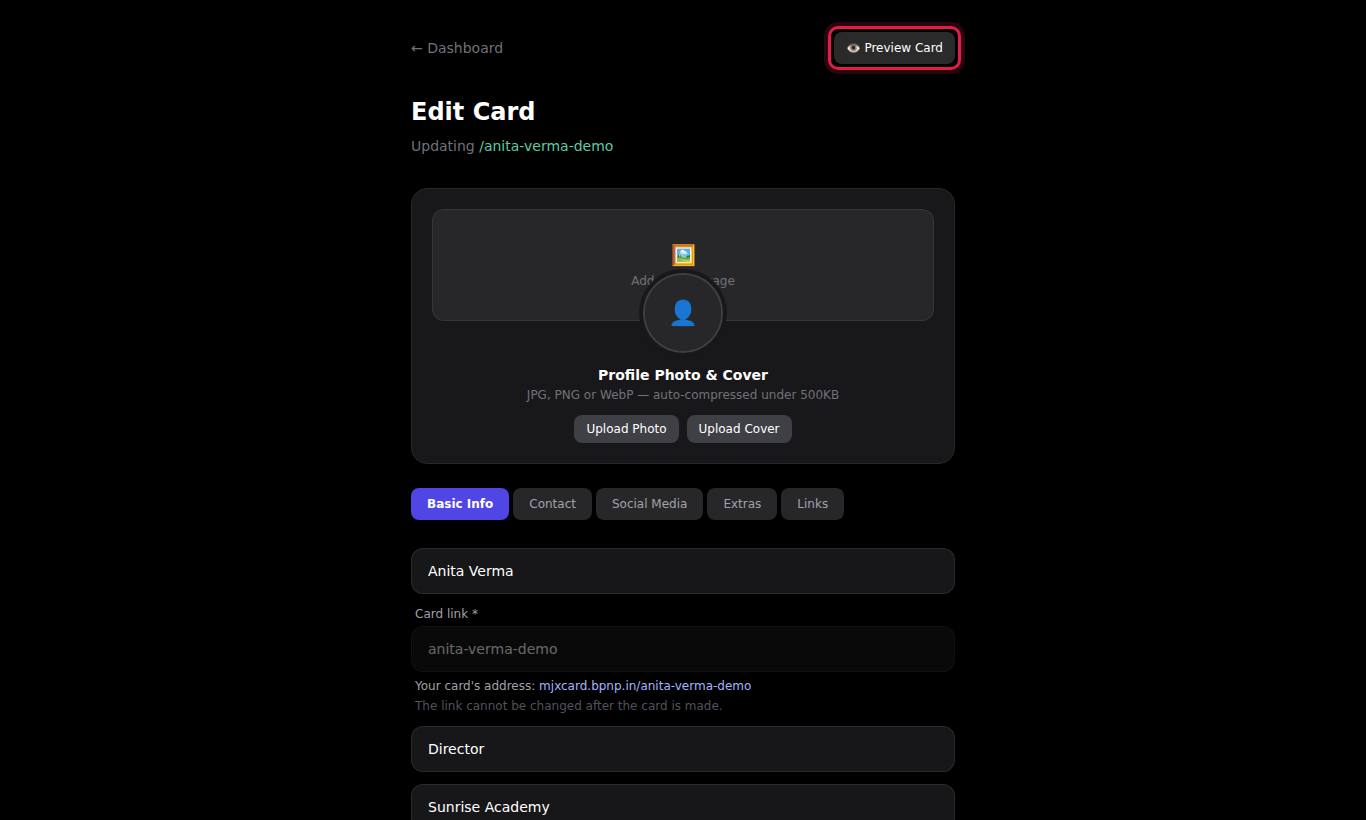
- Find the card and press Edit. The Edit Card page opens, showing "Updating /your-slug".
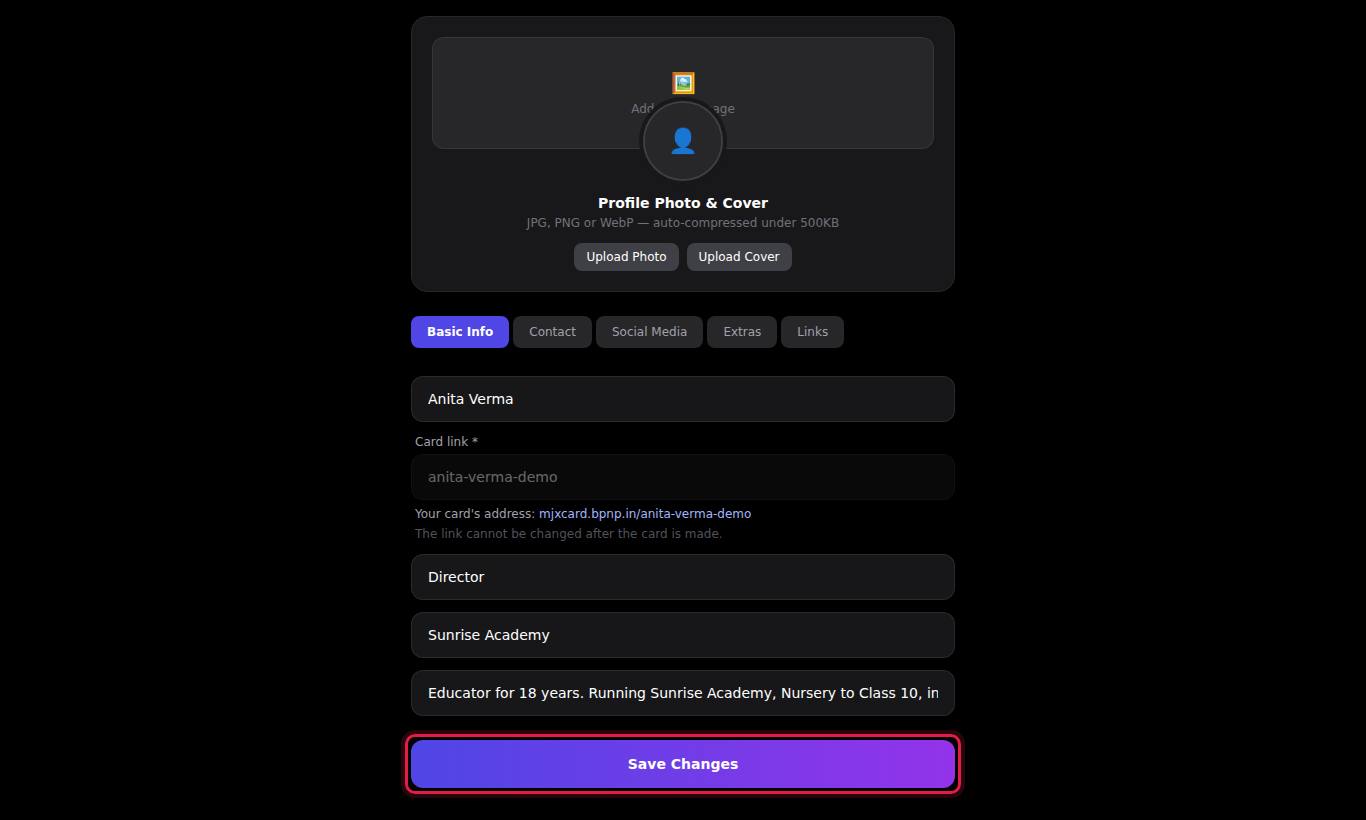
- Change anything on the photo area or the Basic Info, Contact, Social Media, Extras and Links tabs.
- Optional: press Preview Card at the top right to open the live card in a new tab.
- Press Save Changes at the bottom.
#What you can and cannot change
| You can change | You cannot change |
|---|---|
| Name, designation, company, one-line bio | The Card link (greyed out) |
| Every phone number, email, website, address | The card's owner account |
| Social links, services, note banner, custom links | The design (it follows the visitor's phone — see how your card looks) |
| Profile photo and cover image |
Changing the Email Address removes the verified badge until the new address is verified — see verified badge.
#Other buttons on each card
On the Profiles tab, every card has four buttons:
| Button | What it does |
|---|---|
| View | Opens the live card in a new tab |
| Edit | Opens the Edit Card page |
| Analytics | Opens the Analytics tab for this card, with its QR code — see card analytics |
| Delete | Deletes the card after you confirm |
#How to delete a card
- On the Profiles tab, press Delete on the card.
- Your browser asks "Delete this profile?". Press OK to confirm, or Cancel to keep it.
After deletion the slug is free again, so you — or anyone else — can create a new card with it.
#Delete a card or close your account?
Deleting a card does not close your account. To close the whole account and remove your sign-in details, see account, sign-in and password.
#If something goes wrong
| Message | Meaning |
|---|---|
| Could not load profile | The card could not be loaded for editing. Go back with Back to Dashboard and try again. |
| Failed to save changes | The save did not go through. Check your internet and press Save Changes again. |
| Not your profile | The card belongs to another account. You can only edit your own cards. |
| Invalid or expired token | Your sign-in has expired. Sign out and sign in again, then redo the change. |
#Questions people ask
Will my QR code still work after I edit my card?
Yes. Editing never changes the link, so printed QR codes and links you have already shared keep working and show the new details.
Can I undo a delete?
No. Deleting a card removes it, its images and its view statistics immediately and permanently. MJX keeps no hidden copy.
Can I change the slug while editing?
No. The Card link field is locked on the Edit Card page. See "Your card link" for your options.
Do my changes show immediately?
Yes. As soon as you press Save Changes, anyone who opens the link sees the new version.