
Create your digital business card in 3 minutes
Sign up for MJX Card, fill in your card, publish it and share the link and QR code — step by step, from zero to a live card.
In MJX Card you can go from no account to a live, shareable digital business card in about three minutes. You need an email address, a password, your name and a short name for your link.
#Steps to create your first card
#Open the sign-up page
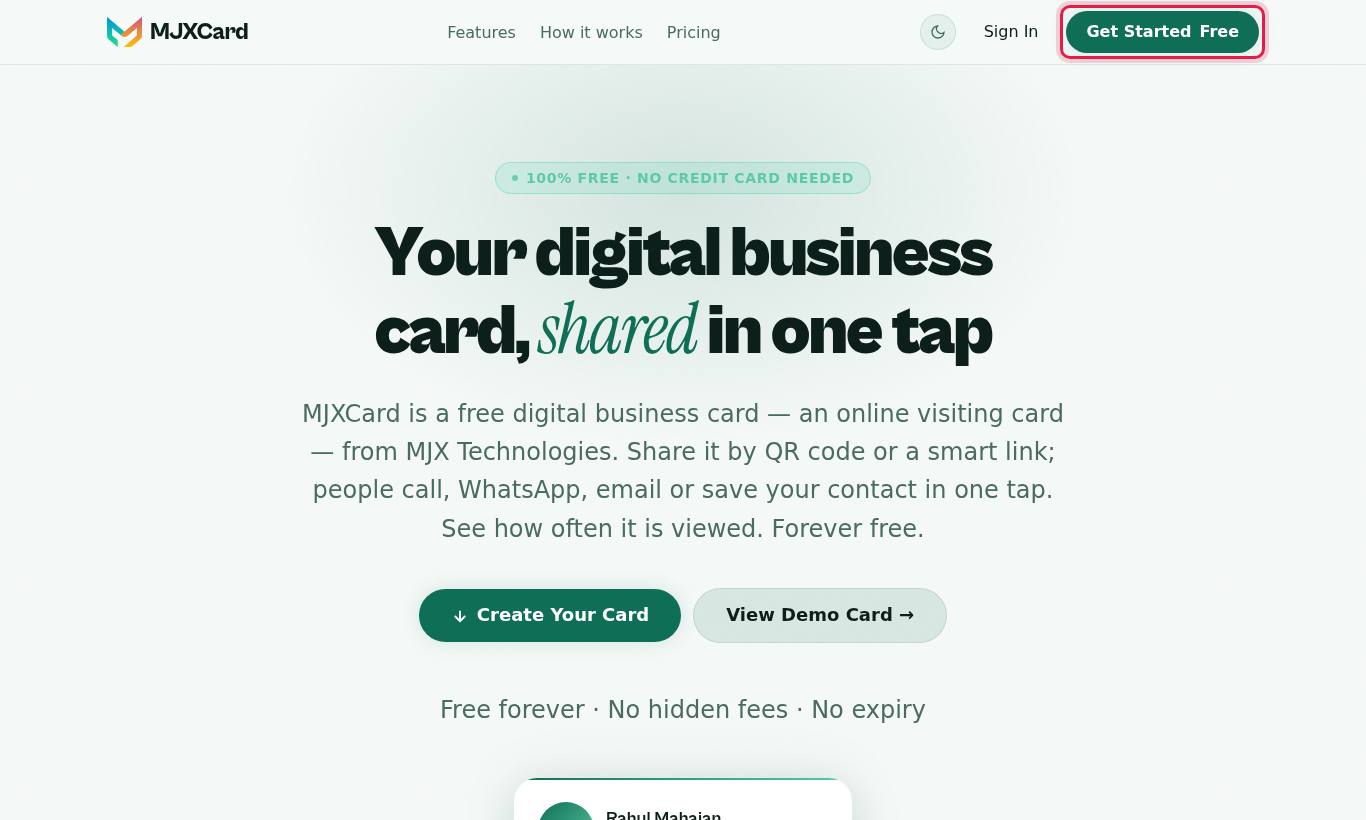
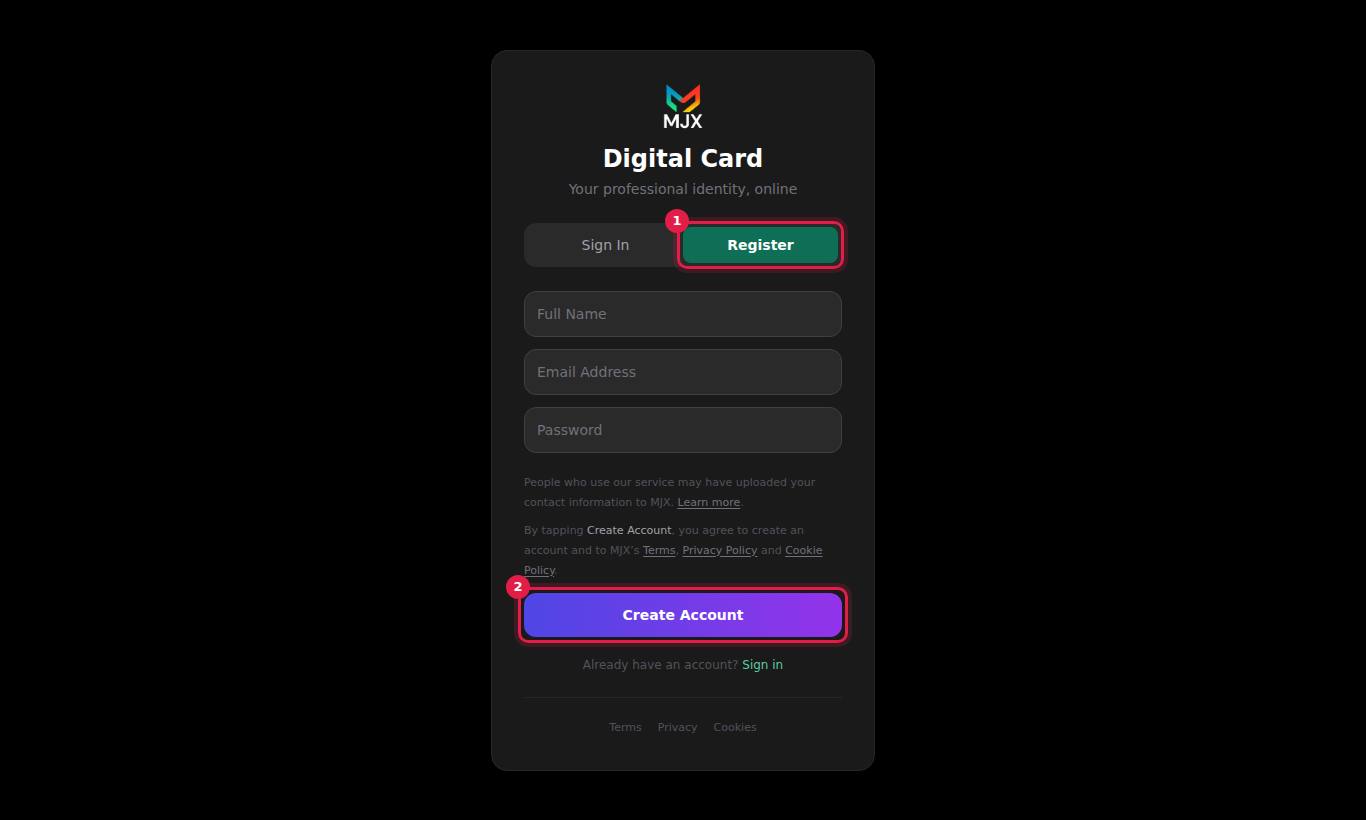
Go to mjxcard.mjxtechnologies.com/login (or press Get Started Free or Create Your Card on the home page). Press the Register tab at the top of the box.
#Create your account
Fill in Full Name, Email Address and Password (at least 6 characters). Read the note about the Terms, Privacy Policy and Cookie Policy, then press Create Account. You land on your dashboard.
#Start a new card
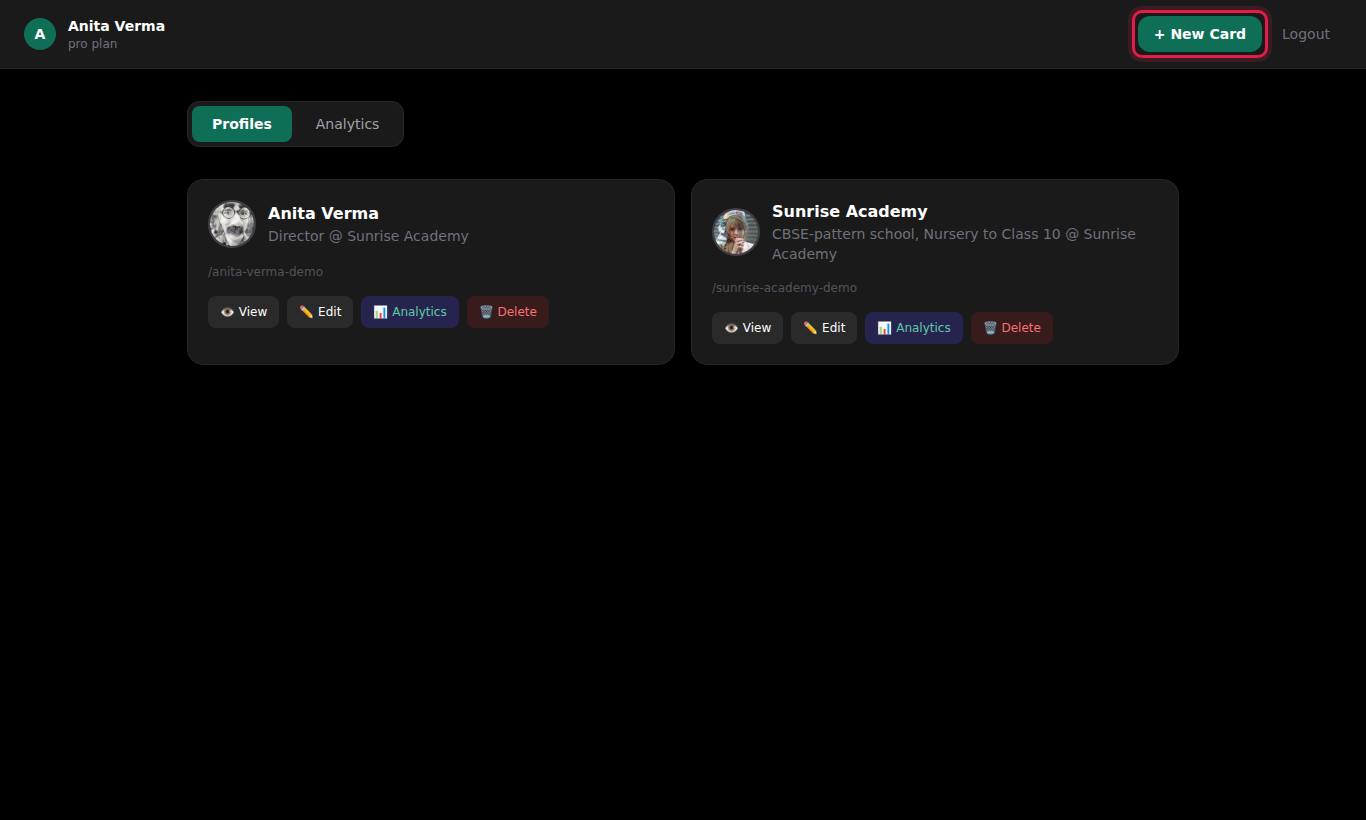
On the dashboard press + New Card at the top right (or Create Your First Card if you have none yet). The Create Digital Card page opens.
#Fill in Basic Info
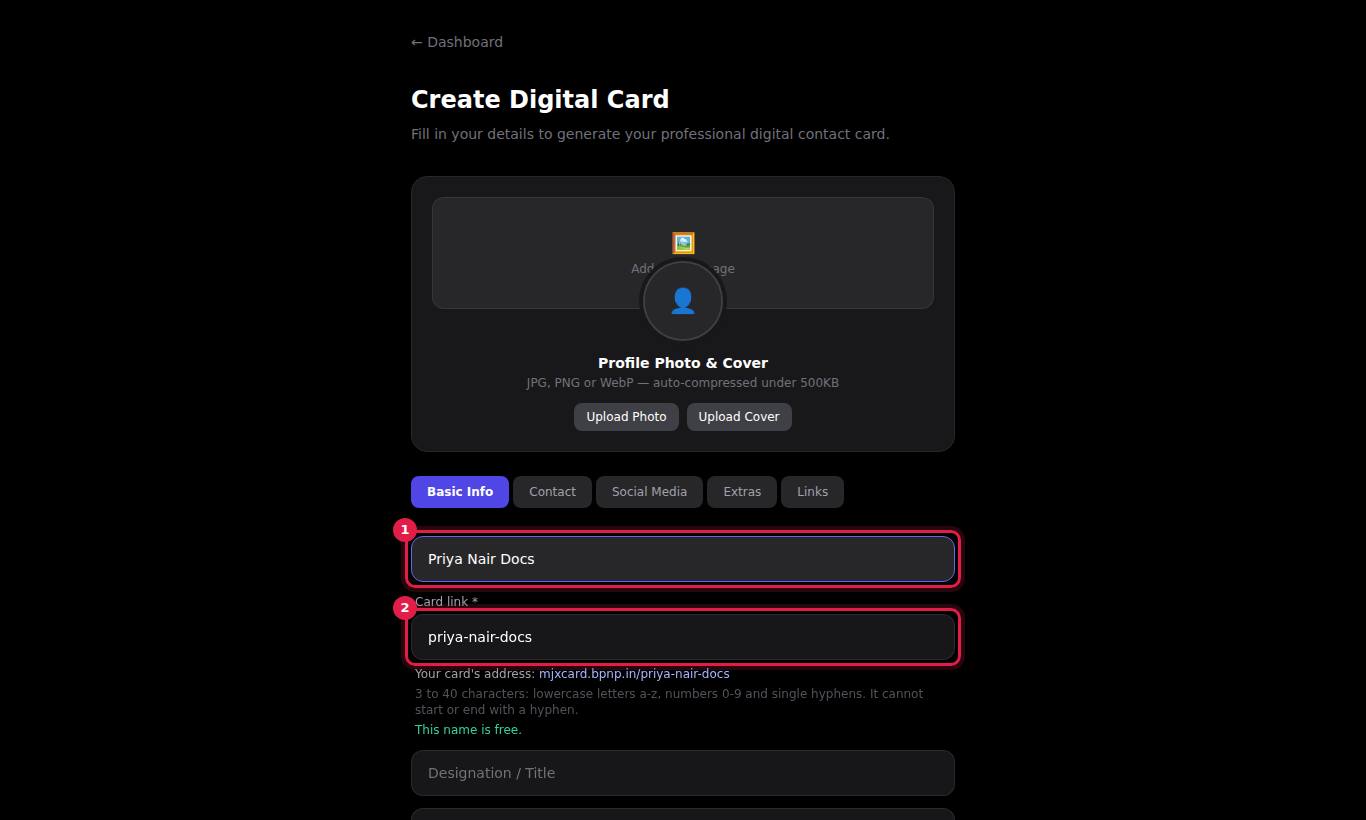
On the Basic Info tab enter Full Name \* and Card link \*. The link fills in from your name; you can edit it. It must be 3 to 40 lowercase letters, numbers and single hyphens, not a reserved word, and not used by another card. The slug is the end of your link — for example sunrise-coaching gives mjxcard.mjxtechnologies.com/sunrise-coaching. Add Designation / Title, Company / Organisation and a One-line bio if you like. See your card link before you choose — the slug cannot be changed later.
#Add a photo and contact details
Press Upload Photo and, if you want a banner, Upload Cover. Open the Contact tab and add Mobile Number, Email Address, Website and Address. The mobile number also powers the WhatsApp button.
#Add social links, services and links (optional)
Use the Social Media, Extras and Links tabs. See contact buttons and links for what each field shows.
#Publish
Press Create Card at the bottom. Your new card opens at its public link.
#What to do next
- Check it on a phone. Open your link on your phone. Try Call, Save Contact and the WhatsApp icon.
- Verify your email to get the verified tick — see verified badge.
- Download your QR code — on the dashboard press Analytics on the card, then ⬇ Download QR Code. See QR code.
- Share the link on WhatsApp, in your email signature and on your social profiles — see share your card.
- Watch the views come in on the Analytics tab — see card analytics.
#If something goes wrong
| What you see | What to do |
|---|---|
| Email already registered | You already have an account. Use the Sign In tab, or Forgot password? if you cannot remember it. |
| Enter the name to show on the card. | Fill Full Name \* on the Basic Info tab. |
| Choose a name for your card's link. | Fill Card link \* on the Basic Info tab. |
| This name is already taken. Try another, such as … | Someone else has that link. Press Use … under the field, or add your city or company. |
| This name is reserved. Try another, such as … | The name is one of the site's own words, such as login or docs. See your card link. |
| Password must be at least 6 characters | Choose a longer password. |
More messages are explained in troubleshooting.
#Questions people ask
What do I need to create a card?
An email address and a password for your account. For the card itself only two things are required — your full name and the name for your link (the slug). Everything else is optional.
How long does it take?
About three minutes for a basic card. Adding a photo, cover image, social links and services takes a few minutes more.
Do I need to pay or give card details?
No. MJX Card is free and never asks for payment details.
Where do I find my card after creating it?
It opens straight after you press Create Card. Later, sign in and you will see it under the Profiles tab of your dashboard.