
Download and print your card's QR code
Download the MJX Card QR code with the MJX logo in the centre, print it on visiting cards or banners, and have scans counted separately in analytics.
Every MJX Card has its own QR code. When someone points a phone camera at it, your card opens. The QR code has the MJX logo in the centre and uses high error correction, so it still scans if it is slightly scratched or partly covered by the logo.
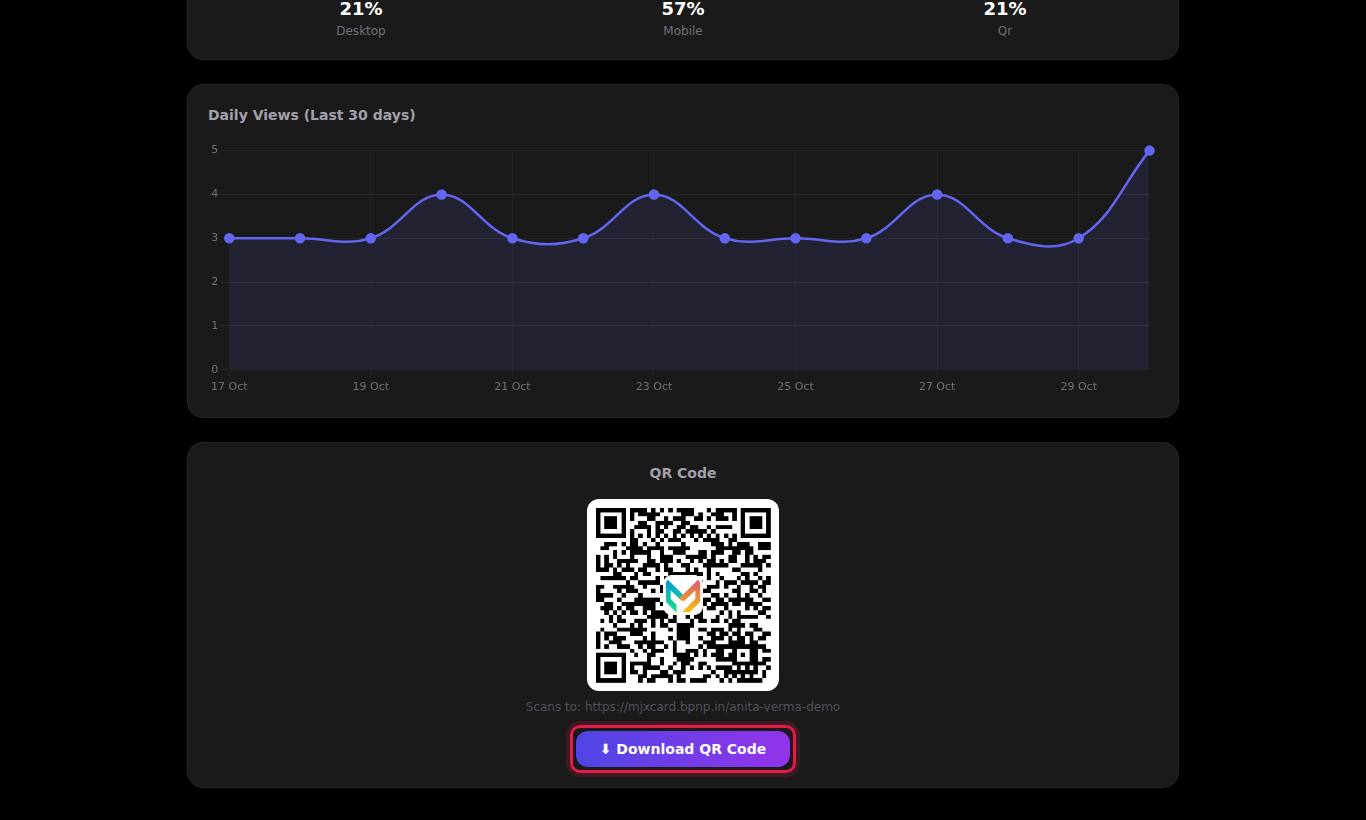
#How to download your QR code
- Sign in. On the Profiles tab, press Analytics on the card you want.
- The Analytics tab opens for that card. Scroll down to the QR Code panel.
- Check the line under the QR code: "Scans to: mjxcard.mjxtechnologies.com/your-slug".
- Press ⬇ Download QR Code.
#What the QR code opens
The downloaded QR code opens mjxcard.mjxtechnologies.com/your-slug?source=qr. The ?source=qr part tells MJX Card the visit came from a QR scan, so it is counted as qr in your Device Breakdown — see card analytics.
#Printing tips
| Where | Suggested size | Tip |
|---|---|---|
| Visiting card | At least 2 × 2 cm | Leave a white border around the code |
| Shop counter stand, reception | 5–8 cm | Add a line like "Scan to save our number" |
| Banner, standee, poster | 15 cm or more | Bigger is better when people scan from a distance |
| Phone screen | — | Open the downloaded image and show it full screen |
- The download is 300 × 300 pixels. That is enough for visiting cards and small prints. For a large banner, ask the printer to enlarge it without blurring (or to recreate it from the image), and always test a proof print.
- Keep the code black on a white or very light background. Coloured or dark backgrounds scan poorly.
- Do not stretch it — keep it square.
- Always test a printed code with two different phones before printing a large batch.
#Who can download it
Only the card owner, from their own dashboard. Visitors cannot download your QR code, but they can pass your card on with Share Profile.
#If the QR code does not scan
| Problem | Fix |
|---|---|
| Phone camera does not react | Hold steady, 15–30 cm away, in good light. Some older phones need Google Lens or a QR scanner app. |
| Opens "Profile not found" | The card was deleted, or hidden by MJX. Check the card on your dashboard, or contact support. |
| Printed code is blurry | The image was enlarged too much. Print smaller, or ask the printer to sharpen it. |
| QR panel does not appear | Press Analytics on a card in the Profiles tab first; the panel shows for the selected card only. |
#Questions people ask
Where do I get my QR code?
On the dashboard press Analytics on the card. The QR Code panel at the bottom of the Analytics tab has a Download QR Code button.
Will the QR code change if I edit my card?
No. The QR code opens your card's link, which never changes. Edit as often as you like; printed codes keep working.
Are QR scans counted separately?
Yes, if the QR code was downloaded from your dashboard. Those scans show as "qr" in the Device Breakdown. A QR code you make yourself from the plain link is counted as a normal visit.
Can I put my own logo in the middle of the QR code?
Not in MJX Card. The downloaded QR code always has the MJX logo in the centre.
What size should I print it?
At least 2 cm × 2 cm on a visiting card, and larger for anything read from a distance, such as a banner.