
Add a profile photo and cover image
Upload, change or remove the round profile photo and the wide cover banner on your MJX Card. Accepted files, sizes and tips.
In MJX Card, each card can have two images: a round profile photo and a wide cover image shown as a banner across the top. Both are optional. You add them at the top of the create or edit form.
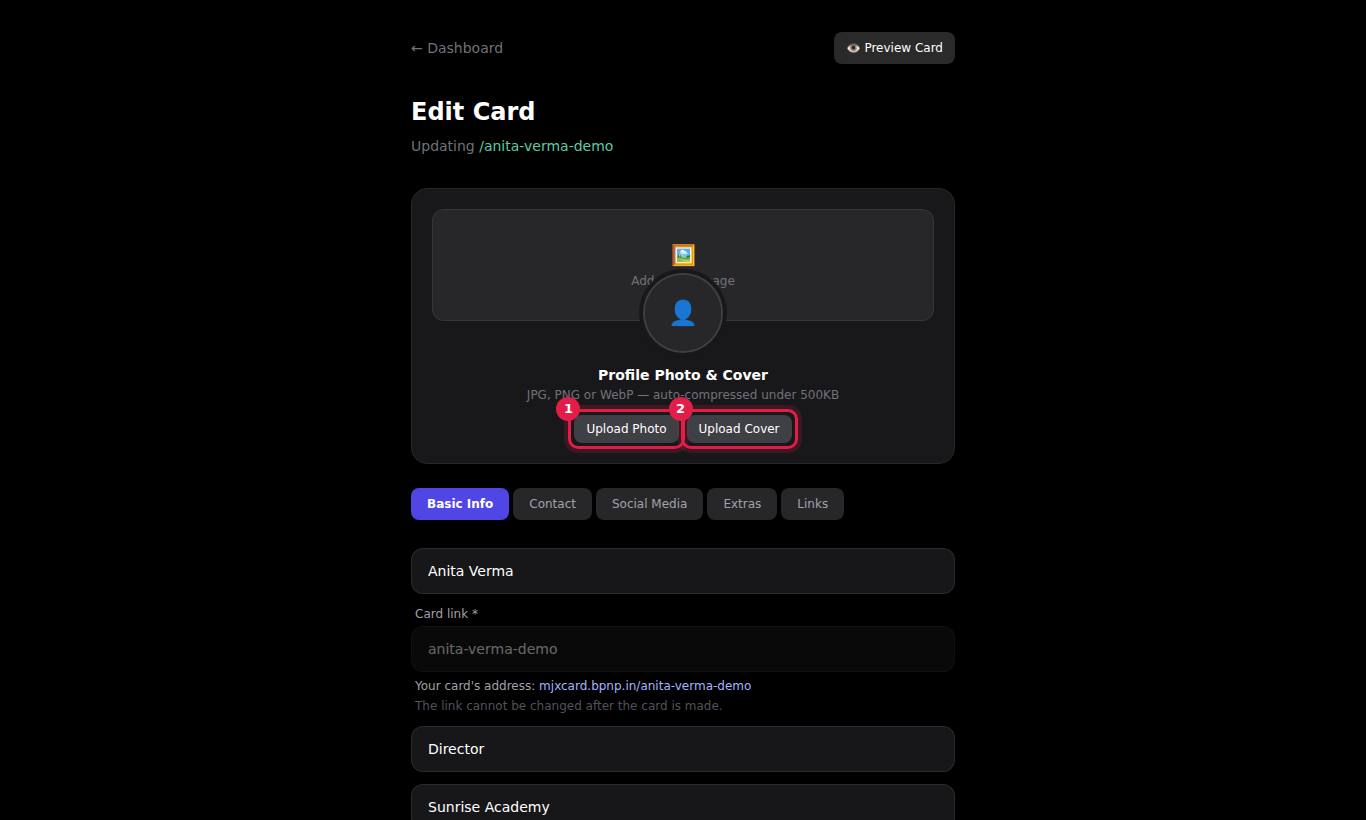
#How to add or change a photo
- Open the form: + New Card for a new card, or Edit on a card in the Profiles tab.
- At the top, under Profile Photo & Cover, press Upload Photo — or tap the round picture itself.
- Pick an image from your phone or computer. The button shows "Uploading..." while it is sent.
- Press Create Card or Save Changes at the bottom of the form.
#How to add or change a cover image
- In the same area, press Upload Cover — or tap the wide box that says "Add Cover Image".
- Pick a wide image.
- Press Create Card or Save Changes.
#How to remove a photo or cover
- Open the card with Edit.
- Press Remove Photo or Remove Cover (shown in red once an image is set).
- Press Save Changes.
The old image file is deleted from MJX's server once you save.
#Image rules
| Rule | Detail |
|---|---|
| File types | JPG, JPEG, PNG or WebP |
| Upload size | Large camera photos are accepted (up to about 15 MB) |
| Stored size | Every image is converted and compressed to under 500 KB — "auto-compressed under 500KB" |
| Profile photo | Shrunk to fit within 1000 × 1000 pixels; shown in a round frame |
| Cover image | Shrunk to fit within 1920 × 1080 pixels; shown as a banner about 150 pixels tall, cropped to fill |
| Orientation | Turned the right way up automatically |
| Hidden details | Camera and location data are removed |
#What the card looks like without images
- No cover: the card starts with your round photo at the top instead of a banner.
- No photo: a placeholder picture is shown. For a professional look, add a photo or logo.
#Tips
- Profile photo: a clear, well-lit head-and-shoulders photo, face in the centre. The edges are cut off by the round frame.
- Logo: use a square version with some empty space around it.
- Cover: a wide picture, roughly three times as wide as it is tall — your shop front, classroom, or brand colours. Keep important parts in the middle, because the sides and top may be cropped on narrow phones.
- Use only images you have the right to use (Terms of Service, section 3).
#If an upload fails
| Message | What to do |
|---|---|
| Only image files allowed (jpg, jpeg, png, webp) | The file is not one of those types (for example HEIC or PDF). Save or export it as JPG and try again. |
| Could not process image. Try another file. | The file is damaged or not a real image. Try another photo. |
| Image upload failed | The upload did not reach the server. Check your internet and try again. If you were signed in a long time ago, sign out and sign in again. |
| File too large | The file is bigger than the upload limit. Pick a smaller photo or take a screenshot of it. |
#Questions people ask
Which image files can I upload?
JPG, JPEG, PNG or WebP. Other files are refused with "Only image files allowed (jpg, jpeg, png, webp)".
Is there a size limit?
Large photos are fine. MJX Card shrinks every image to under 500 KB before saving it, so a photo straight from your phone camera works.
Can I use my company logo instead of a photo?
Yes. The profile photo area accepts any image. A square logo on a plain background looks best in the round frame.
Does the photo keep my phone's location data?
No. When an image is saved, its hidden details (such as camera and location data) are removed.
I removed my photo but the card still shows one.
Removing a photo only takes effect when you press Save Changes. A card without a photo shows a placeholder picture.